Starting up and shutting down the AGIBOT Genie G2
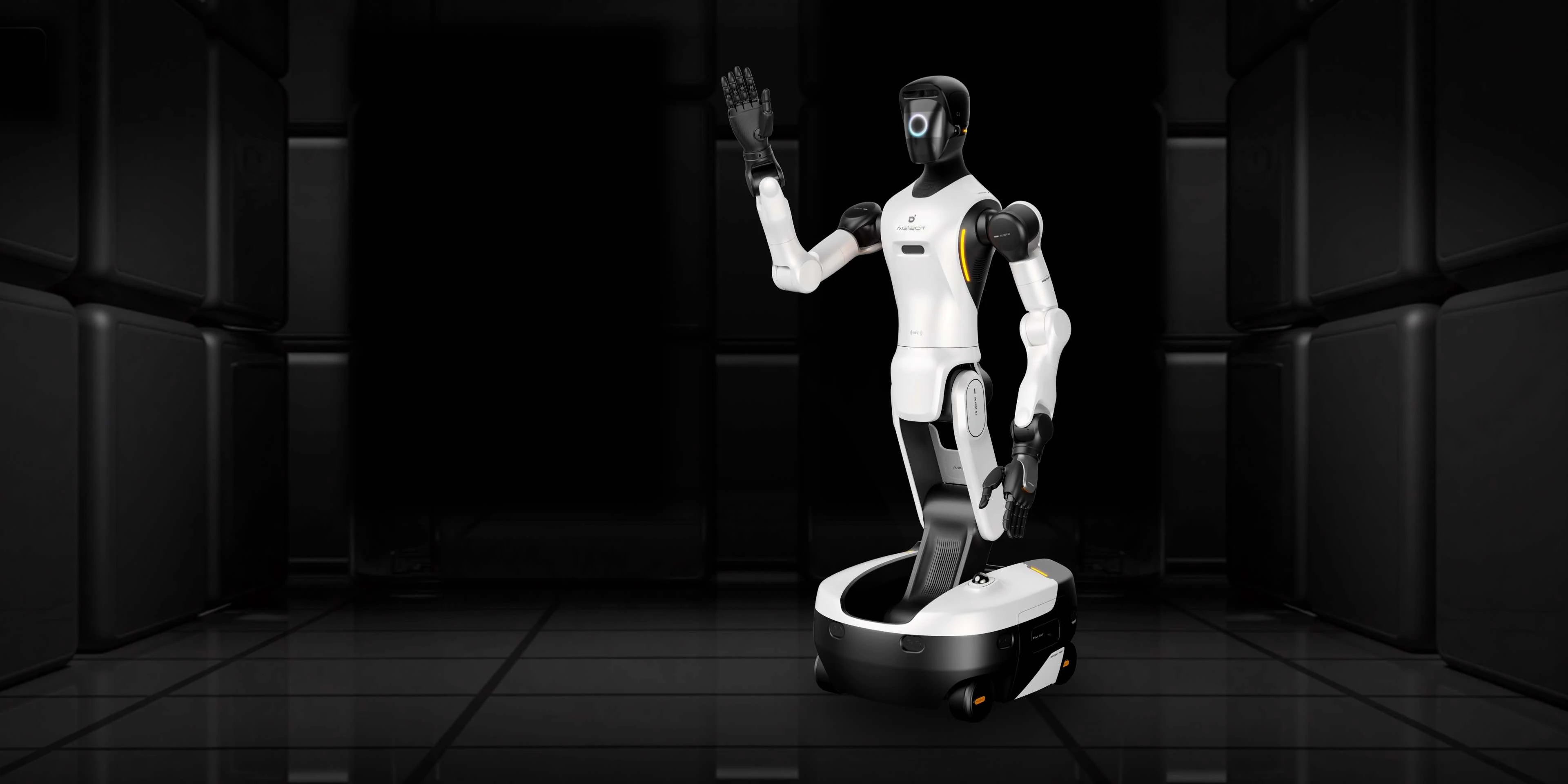
Short answer
According to AgiBot's G2 user manual (release 30 July 2026), you first switch on the Power button behind the chassis and then the On/Off button on the waist of the robot. To shut down, hold the On/Off button on the waist for 5 seconds and release; the robot then shuts itself down. If the robot is being transported or has been off for more than 3 days, press the Power button on the chassis once afterwards. The manual also lists conditions for temperature and storage.
In brief
- Switching on: first the Power button behind the chassis, then the On/Off button on the waist.
- Shutting down: hold the On/Off button on the waist for 5 seconds and release; the robot shuts itself down.
- For transport or more than 3 days off: afterwards, press the Power button on the chassis once.
- The tablet (called the wireless terminal in the manual) works wired on the robot or wirelessly via the robot's own hotspot.
- Standard apps in the manual: Joint Control, Map and Remote Walking; teleoperation runs via a VR headset.
- The manual gives no version number, only a release date (30 July 2026). If in doubt, follow the manual for your software version.
Switching on
The G2 has two batteries, one on each side of the chassis. The switch-on sequence according to the manual:
- Insert the batteries on both sides of the chassis.
- Press the Power button behind the chassis. The button lights up.
- Press the On/Off button on the waist of the robot. That button lights up as well.
Check beforehand what the manual lists: the robot is intended for indoor use at 0 to 45 degrees Celsius and less than 90% relative humidity, the emergency stop works, there are no alarms on the tablet and no unauthorized accessories are fitted. Charge the battery only with the original charger.
Connecting to the tablet
The manual speaks of a wireless terminal; in practice, that is the tablet that fits on the robot.
| Method | How it works | Note |
|---|---|---|
| Wired | The tablet is on the robot. The robot charges the tablet. | Relatively low bandwidth: with multiple video streams, images may stutter or lag. |
| Wireless | Take the tablet off the robot; the connection switches automatically. The robot creates its own hotspot. | More bandwidth, but interference is possible in busy environments with many robots. |
The name and password of the hotspot are not stated in the manual.
Standard apps
- Joint Control: operation of the torso, arms and joints in small steps, with adjustable step size and speed. You can save and restore postures.
- Map: create, manage and edit maps, including relocalization, waypoints, virtual walls and areas. Also autonomous navigation to a location.
- Remote Walking: driving remotely with a virtual joystick, in Ackermann and crab steering modes.
- Developer Tools: offline and online SDK documentation. You connect via the wired or wireless connection; a security authorization and a browser setting follow. See developing software for AGIBOT.
Teleoperation is not an app on the tablet. The manual describes it with a VR headset and the Genie Link app; see teleoperation of the Genie G2.
Shutting down and storage
- Hold the On/Off button on the waist for 5 seconds and release. The robot starts the shutdown process and then switches off automatically.
- For longer transport, or for storage without power for more than 3 days, press the Power button on the chassis once.
The manual also states: do not switch the robot off during a software update (see firmware updates for AgiBot robots), always switch the robot off for transport or maintenance, and fully charge the battery every 60 days. If the robot is out of use for more than a week, the battery must be at least 60% before you switch off the main power.
Sources: AGIBOT G2 User Manual (release 30 July 2026), G2 Quick Start Guide v1.0 from the robotfaq documentation collection (26 June 2026). Checked on 22 November 2026.
Sources
- AGIBOT G2 User Manual (agibot.com, release 30 July 2026) (checked on 2026-11-22)
- robotfaq documentation collection: G2 Quick Start Guide v1.0 (26 June 2026) (checked on 2026-11-22)
Frequently asked questions
Does the tablet always have to be on the robot?
No. If you take the tablet off the robot, the connection automatically switches to wireless according to the manual, and the robot uses its own hotspot. You release the tablet by turning it 90 degrees counterclockwise and pulling it backward.
How do I charge the tablet?
If the tablet is on the robot, the connection is wired and the robot charges the tablet, according to the manual.
What is the difference between wired and wireless?
Wired has a relatively low bandwidth, so with multiple video streams the images may stutter or lag. Wireless has more bandwidth, but can suffer from interference in busy environments with many robots, such as trade shows.
How do I shut down the G2?
Hold the On/Off button on the waist for 5 seconds and release. The robot starts the shutdown process and then switches itself off.
When do I press the Power button on the chassis?
For longer transport and for storage without power for more than 3 days, you press that button once. When switching on, it is the first button you press.
Can I switch the robot off during a software update?
No. The manual says you must not switch the robot off during a software update. See also the update procedure in the article on firmware updates.
Can I program the G2 myself?
The manual mentions a Developer Tools app with offline and online SDK documentation and SDK interfaces for secondary development. It does not mention a Python API or GDK.